How to use it
The first three steps take about a minute. Everything under them is optional, laid out so you can see the whole thing without scrolling for ten minutes.
Start here
Do these three and the extension is working. The rest is extra.
Install and pin it
Get it from the Chrome Web Store. Click the puzzle icon in your toolbar and pin the yellow H. You will use that icon every day, so it is worth pinning.
Make a list
Click the H, then the round plus button. Name it something like "Team names" and press Create.
Add some words
Click the small purple plus on the list row, type a word, press Enter. Open any page with that word on it. It lights up.
What the popup buttons do
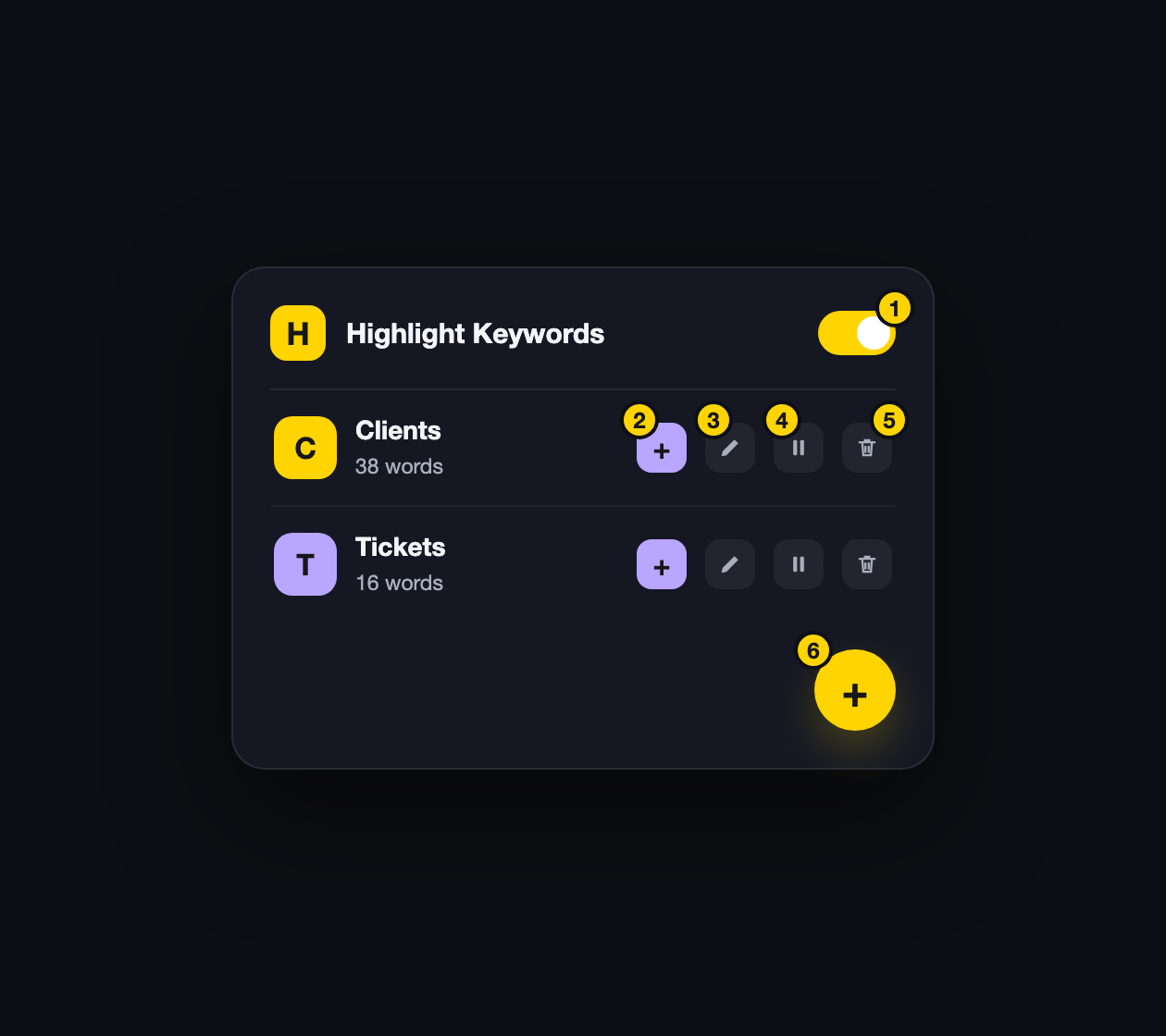
- Turns every list on or off at once
- Adds a word to this list
- Opens the full editor
- Pauses this list only
- Deletes this list
- Creates a new list
The figure under each list name is how many words that list holds.
Paste a whole list at once
Already keep a roster somewhere? Do not retype it. Open Settings from the popup menu, expand your list, and paste the lot into the words box, one per line.
Duplicates get dropped as you paste, and a small window tells you exactly which ones, with a button to copy them.
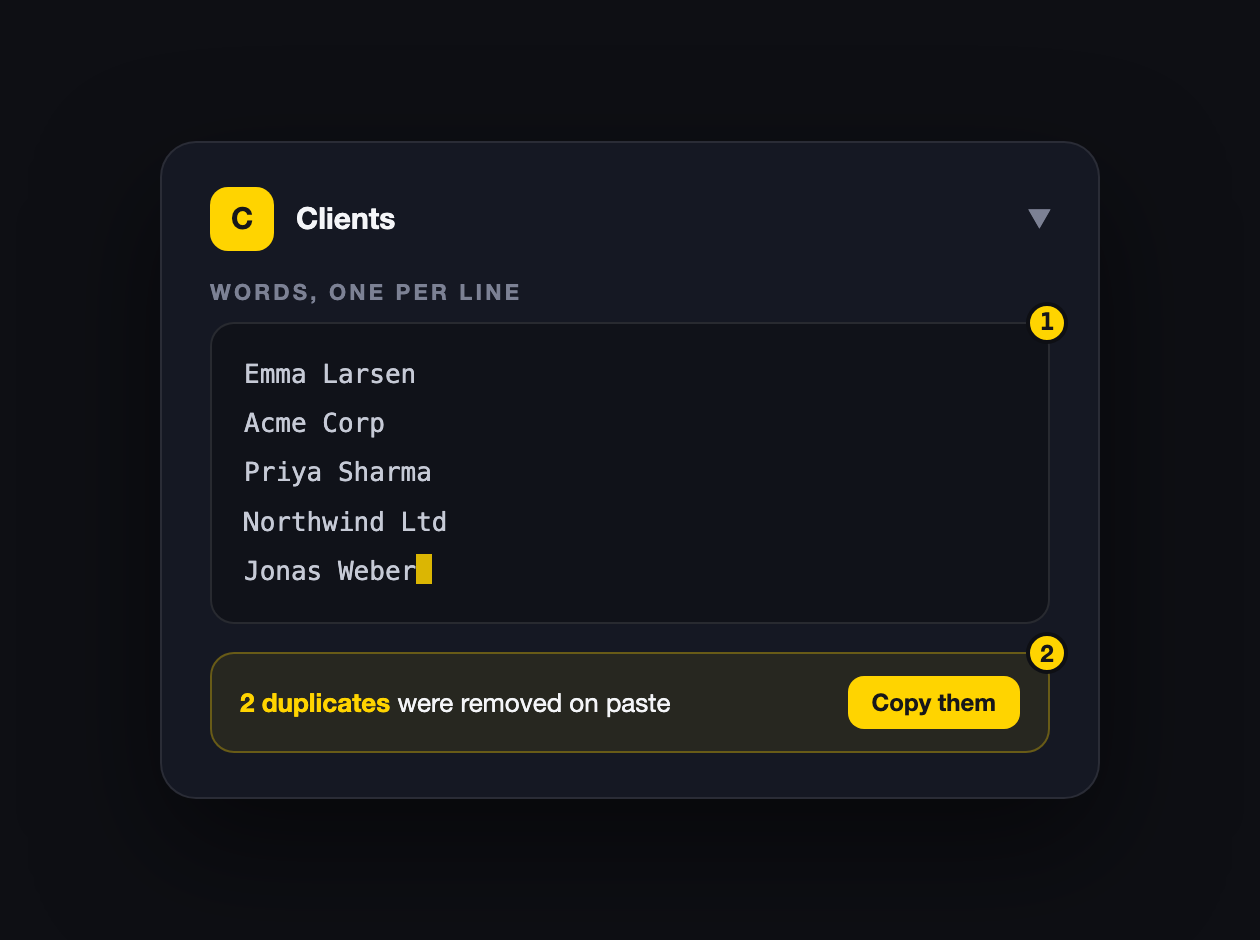
- Paste into the words box, one word per line
- Any duplicates are listed, so you can see exactly what was removed
Day to day
The parts you will actually touch once things are set up.
Colours and looks
Every list gets one colour and one look:
- Auto-contrast: a solid fill that picks black or white text by itself. This is the default, and the reason highlights stay readable on dark sites.
- Highlighter: a see-through tint, like a real marker.
- Underline: a coloured line under the word, nothing else.
- Coloured text: the word itself changes colour.
- Dim: fades the word instead of drawing your eye to it.
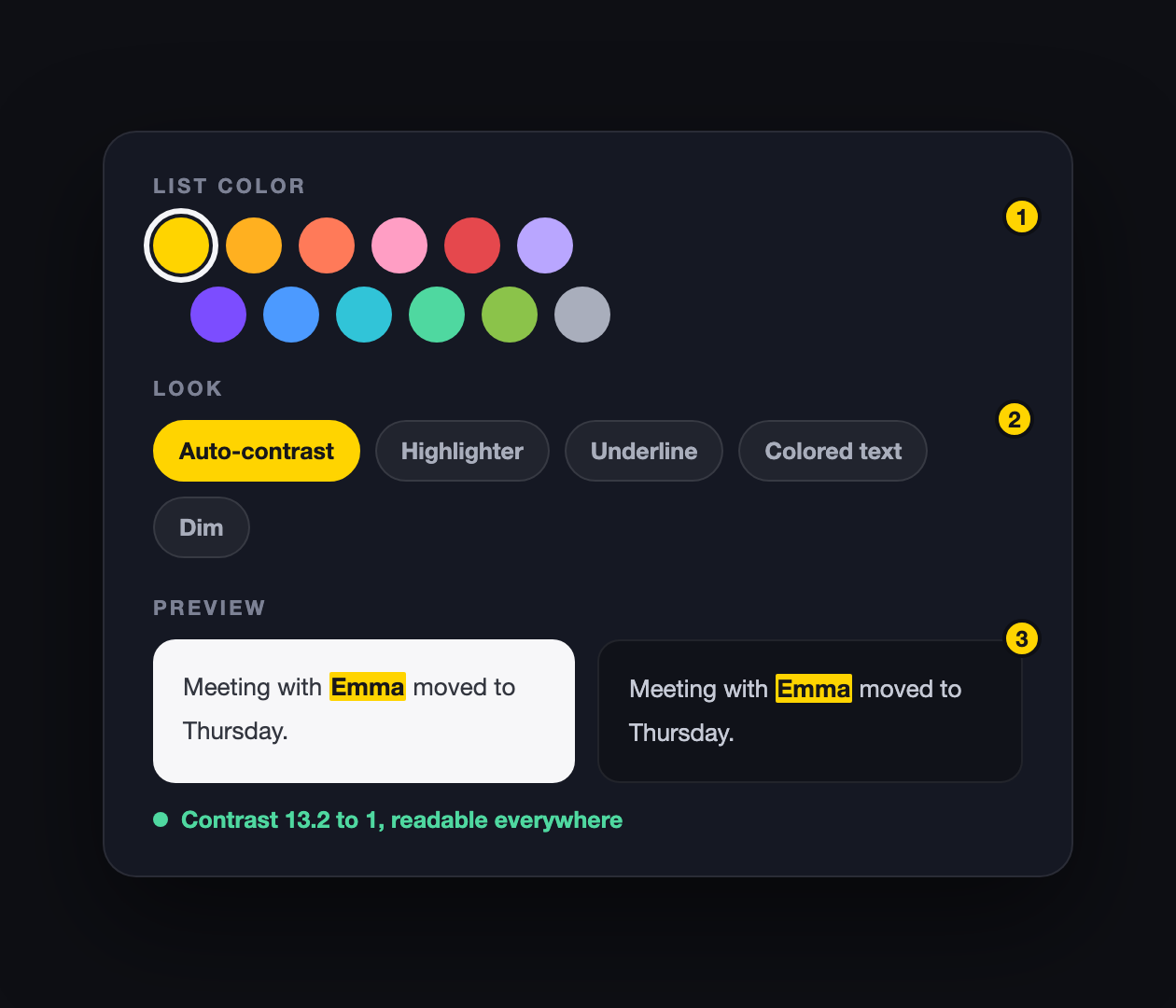
- The colour palette
- The five looks
- Your choice shown on a light page and a dark page at once, with its contrast score below
Click a highlight to copy it
Click any highlighted word and it goes to your clipboard. A small spark confirms it.
If the word sits inside a link, a normal click still follows the link. Hold Cmd or Ctrl to copy instead.
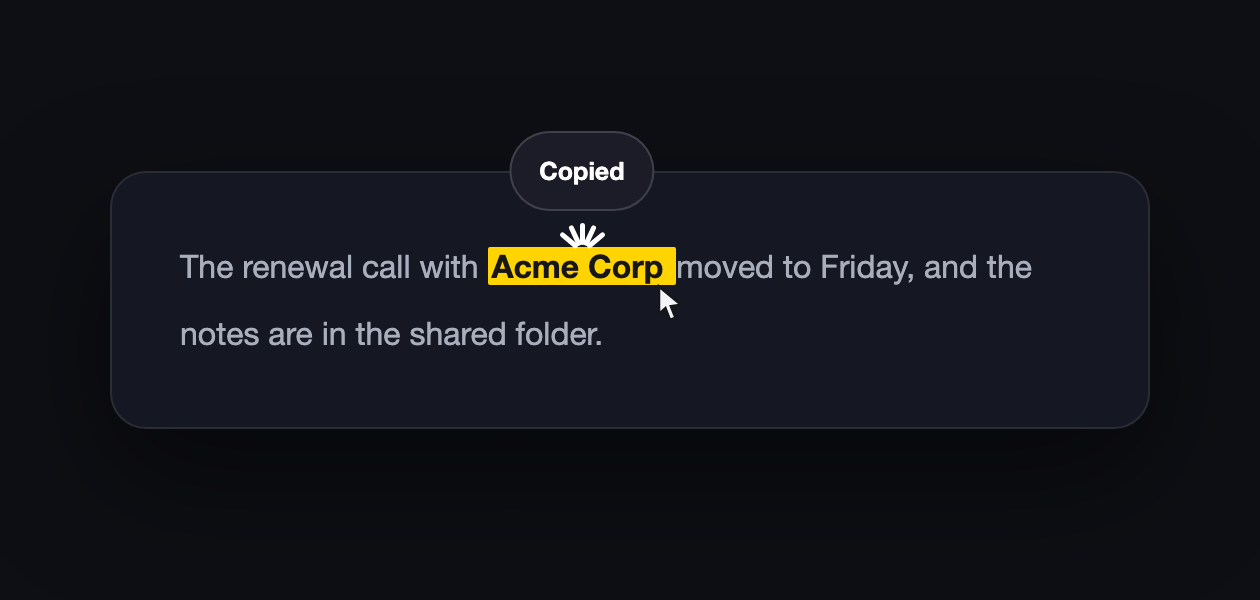
Under "More options" you can change what a click does per list: copy, run a search, open a URL with the word filled in, or nothing at all.
Counts, edge markers and alerts
The toolbar icon shows how many matches the page has. Coloured ticks down the right edge show where they are, and clicking one jumps you there.
"Show on page" in the popup opens a panel listing every list with matches. Click a row to walk through them.
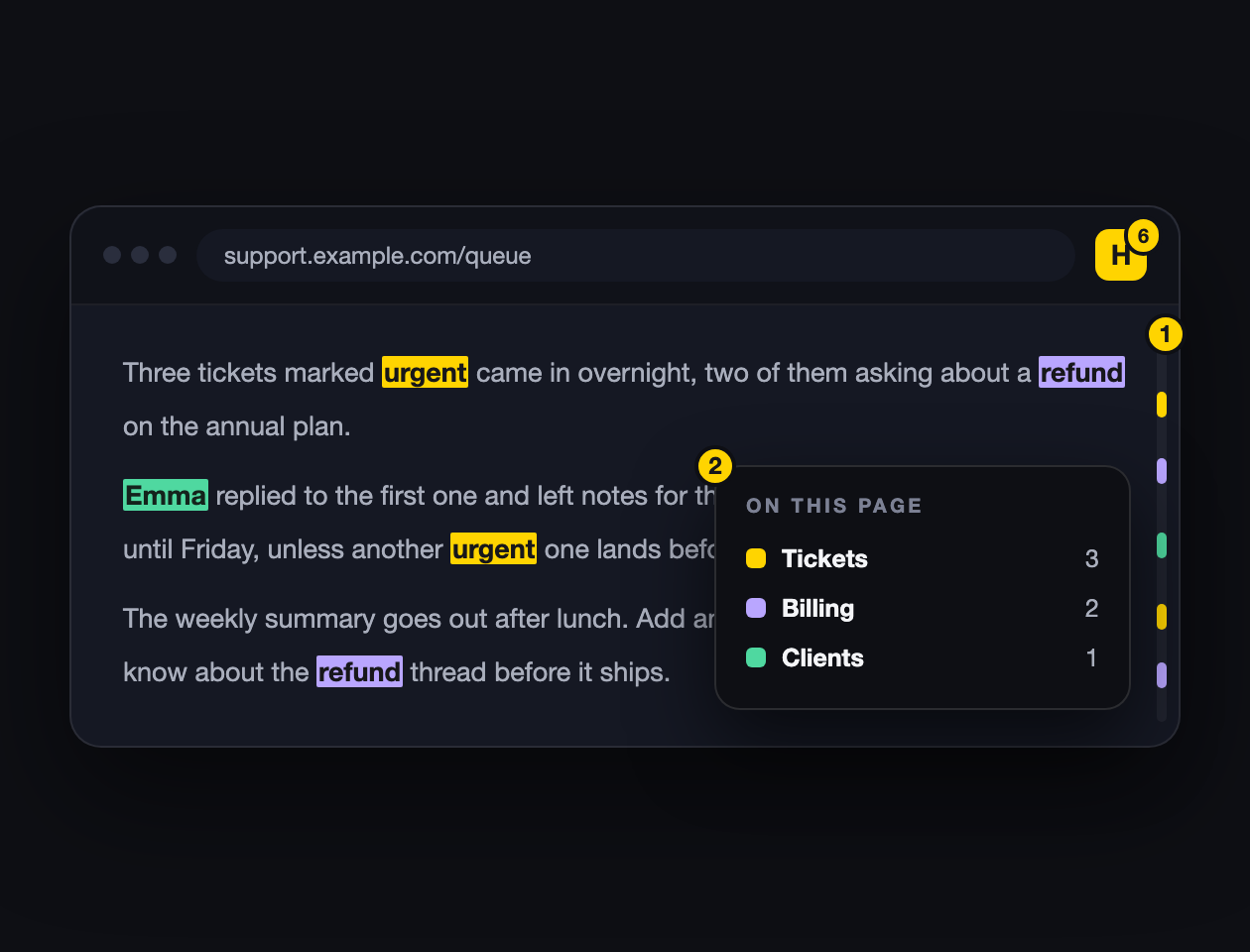
- Ticks down the page edge mark where each match sits
- The on-page panel lists every list that matched
The toolbar badge shows the total for the page, six in this example.
Any list can also ping you with a desktop notification the first time it matches a page PRO. Useful for a name in a support queue. There is a switch in Behavior to play a soft sound with it.
Keyboard shortcuts
Select any text on a page and press Alt+A (⌥A on a Mac) to add it to the list you last used. The page tells you what happened, and the popup shows the key above your lists.
Alt+Shift+N goes to the next highlight, Alt+Shift+P the previous one. The match scrolls into view and flashes.
Alt+Shift+H turns highlighting off everywhere, and on again. Change any of these at chrome://extensions/shortcuts.
Hover notes
Give a list a note, say "night shift, reply within 10 minutes". Hover any word from that list and the note appears.
Set it up your way
Worth knowing about, but you can ignore all of it and still get the point.
Where highlighting runs
- Disable here: switch it off on sites you do not want it on.
- Only here: the reverse. Highlight on listed sites and nowhere else.
- Zone: keep it to one part of a page using a CSS selector like main.
Patterns take a star, so *.slack.com covers every workspace. Quicker route: the popup has an "Enable on this site" tickbox for wherever you are now.
Start from a template
Instead of an empty list, pick a ready-made one. Office covers departments, job titles and meeting terms. School has subjects and exam words. Personal has family, groceries and travel.
Take a few, add them together, then edit them like anything else.
List icons
Under the palette there are about two dozen icons: person, team, briefcase, bell, flag. The icon replaces the letter on the list avatar, which makes lists easier to tell apart.
Patterns, typos and per-word colours
The regex builder writes patterns for you. Pick "words starting with", "any number", "email addresses", watch it run on sample text, add it in one click.
Fuzzy matching PRO forgives one typo per word, so "Highlaght" and "Highlihgt" still find "Highlight". It only applies to words of five letters or more. In a short name like "Emma" one wrong letter would match far too much, so short words always match exactly.
Per-word colours make one word stand out inside its list. Add the word, pick its colour, and the text flips black or white by itself.
Your data
It lives in your browser. These are the ways to move it or get it back.
Trash: deleting is not final
Deleting a list moves it to the trash instead of destroying it. It waits there for 30 days, and "Restore" puts it back exactly as it was: words, color, look, everything. After 30 days it goes for good, or sooner if you press "Delete forever".

Backups and export
A backup is taken automatically before anything risky, including version updates. You can also press "Back up now" whenever, and restore any backup in one click.
Export writes everything to a file you can carry to another machine. Import reads that same file back.
Share one list
A single list can travel on its own, without your other lists or settings. "Export list" saves just that one. "Share link" copies a link that opens a page with an "Add to my extension" button.
The words ride inside the link itself, nothing is uploaded anywhere. Anyone with the link can read the list, so treat it like the words in it.
Sync across computers PRO
Your lists follow you to other computers signed into the same Chrome profile.
Two honest limits. Chrome only gives extensions a small sync allowance, so a very large list may not fit. And phones are out, because Chrome on phones does not run extensions at all.
Pro extras
One payment, no subscription. The free plan keeps working either way.
Highlight inside PDFs PRO
Chrome's own PDF viewer is sealed off from every extension, so no highlighter can reach inside it. This one brings its own viewer instead, and your lists work on a document exactly as they do on a webpage: the same colours, the same counts, click a word to copy it.

- Open a PDF. Land on one and the toolbar icon shows a PDF badge. Click the icon and choose "Open it there". You can also right-click any PDF link and pick "Open PDF in Highlight Keywords".
- Say yes once. The first PDF from a new site asks permission to read that site. One click, and only that site.
- Read as normal. Zoom with the plus and minus buttons in the bar. "Original" opens the untouched PDF, "Settings" goes to your lists.
- Files on your computer. Open chrome://extensions, click Details on Highlight Keywords, and turn on "Allow access to file URLs". Then a PDF you saved opens the same way.
Long documents are fine: pages you have scrolled well past are released and redrawn if you come back, so a 300 page report does not fill your memory.
Insights PRO
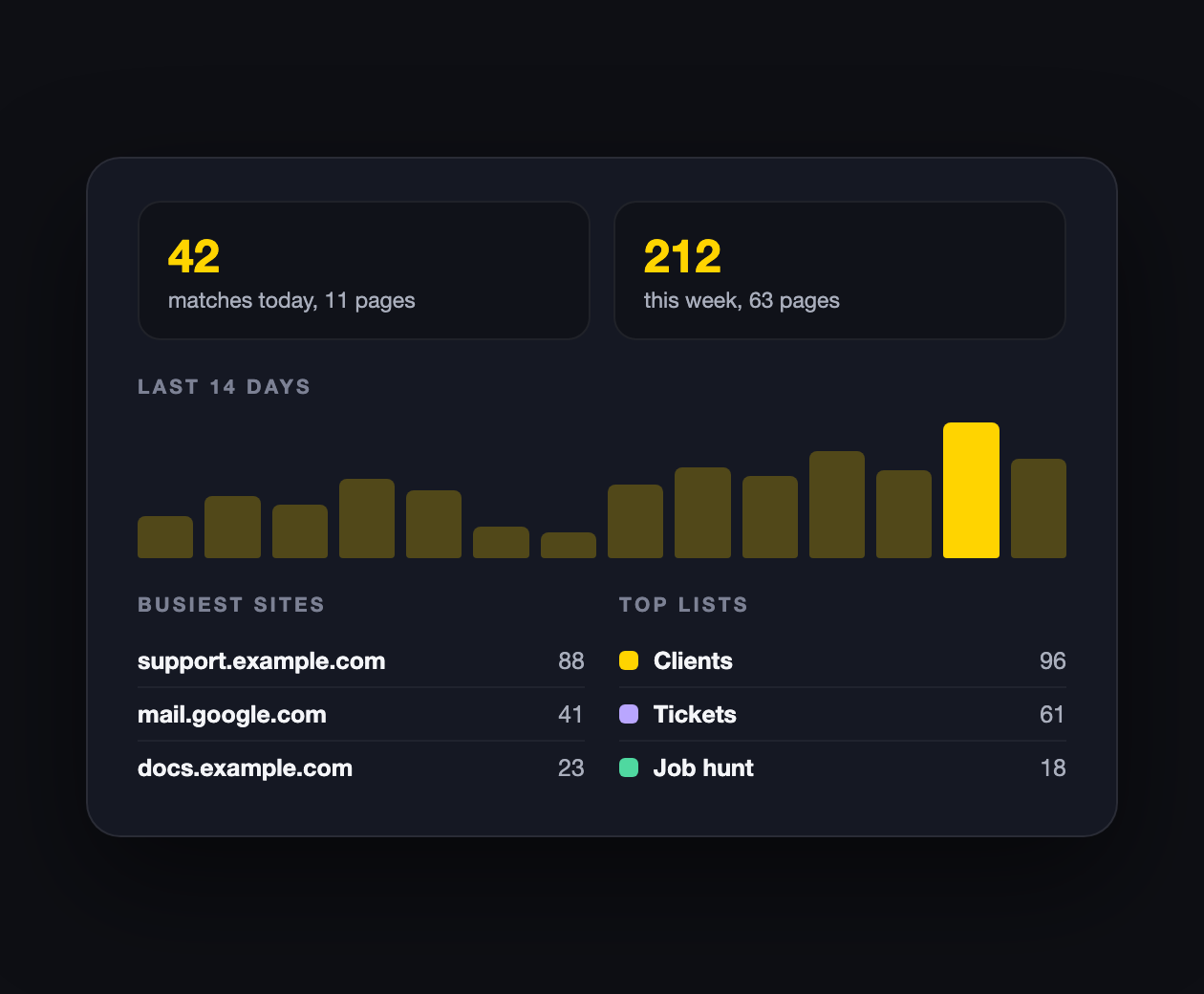
What your lists have been doing: matches and pages today and this week, a 14-day trend, your busiest sites, and which lists fire most.
Counting happens on your device and stores hostnames only, never words or full addresses. It trims itself after 90 days, and Behavior has a switch to stop counting plus a button to erase the lot.
Lists that update themselves PRO
A list can pull its words from a URL on a schedule: a published Google Sheet, a Pastebin raw link, any plain text file with one word per line, a Notion database, or an Airtable table. The last two need an API token.
Handy when a team shares one master list. Set the refresh interval, press "Fetch now" for the first load, and approve the one site it asks for.
Every switch, and what it does
The whole product in one list, so you never have to hunt for a setting.
On a list
- Words
- One per line. Paste a whole column from a spreadsheet and it splits itself, duplicates and all. Commas work too, including the Chinese and Arabic ones.Settings, open a list
- Colour and icon
- Click the coloured dot to pick from the palette, type a hex code, or choose an icon so you can tell lists apart at a glance.Settings, open a list
- Look
- Five ways to show a match: auto contrast fill, plain fill, underline, coloured text, or dimmed. The preview under it shows the same word on a light and a dark page.Settings, open a list
- Whole word only
- On by default, so "Mark" stays quiet inside "marketing". Untick it to match inside longer words.Settings, open a list
- Match case
- Off by default. On means "IT" no longer matches "it".Settings, open a list
- Patterns
- Treats each line as a regular expression, for things like INC-\d{4,6}. There is a builder if you do not write them by hand.Settings, open a list
- Typo tolerance PRO
- Allows one slip per word: a wrong letter, a missing one, a doubled one, or two swapped. Words shorter than five letters stay exact, because at that length everything looks like everything else.Settings, open a list
- Per-word colours
- Give one word in a list its own colour, for the name that matters more than the rest.Settings, More options
- On click
- What happens when you click a highlight: copy it (the default), search for it, or open a link built from it. Links can open in this tab or a new one.Settings, More options
- Hover note
- A line of text that appears when you point at a match. Useful for "ask before replying" style reminders.Settings, open a list
- Alerts PRO
- A desktop notification when this list matches a page you open, with an optional chime. Once per list per tab per minute, so it cannot spam you.Settings, open a list
- Priority
- The up and down arrows. When a word is in two lists, the higher list wins and paints it.Settings, list row
- Pause
- Stops one list without deleting it. The words stay exactly where they are.Popup or Settings, list row
- Group
- Files lists together once you have a lot of them.Settings, More options
- Remote list PRO
- Pulls the words from a published Google Sheet, a Pastebin raw link, any plain text file, Notion, or Airtable, on a schedule you set. "Fetch now" does the first load.Settings, More options
- Copy all, share, export
- Copy every word in the list to your clipboard, hand the list to someone as a link, or save it as a file.Settings, open a list
- Remove duplicates
- One button, for after a messy paste.Settings, open a list
Everywhere else
- Master switch
- The toggle in the popup turns everything off and on. Alt+Shift+H does the same without opening it, and you can change that at chrome://extensions/shortcuts.Popup
- Just this site
- The "Enable on this site" tick in the popup. For a permanent rule, or a pattern like *://*.example.com/*, use Sites in Settings.Popup, or Settings, Sites
- Only part of a page
- A site rule can name one area of the page to highlight and leave the rest alone, using a CSS selector.Settings, Sites
- Count and overview
- The number on the toolbar icon is matches on this page. "Show on page" opens a small panel listing every match, and clicking one jumps to it.Popup
- Jump between matches
- Alt+Shift+N for the next match, Alt+Shift+P for the previous one.Any page
- Edge markers
- Coloured ticks down the side of the page, one per match, so you can see where they are without scrolling. Switchable.Settings, Behavior
- Add a word from a page
- Select text, right-click, and pick the list to add it to. Faster: select text and press Alt+A (⌥A on a Mac) to drop it into the list you last used. Either way the page says what happened. The popup shows the key above your lists, and Change opens chrome://extensions/shortcuts.Any page
- Insights PRO
- Where your words keep turning up: totals for today and this week, a 14 day trend, your busiest sites, and which lists fire most. Site names and numbers only, kept 90 days on your machine, with a switch to stop counting and a button to erase it.Settings, Insights
- Sync PRO
- Carries your lists to every browser you are signed into, through your own Google account. Push and pull buttons force it either way. Turning it off deletes the synced copy.Settings, Sync and backup
- Backups
- One automatic backup a day, kept on your device, plus a "Back up now" button and restore. Restoring never touches your licence.Settings, Sync and backup
- Export and import
- Everything as one JSON file, to move machines or keep a copy. Exports never include your licence key or any access token.Settings, Sync and backup
- Reset everything
- Wipes lists, settings, statistics and backups from this device, and from your browser account if sync was on. There is no undo.Settings, danger zone
- Widget-heavy sites
- Some sites build their text inside sealed components. Highlighting reaches into those by default; the switch is there if a site misbehaves.Settings, Behavior
- Waiting time
- How long to wait after a page changes before highlighting again. Raise it on a page that updates constantly, lower it if matches feel slow to appear.Settings, Behavior
- Language
- The interface speaks 52 languages and follows your browser by default. Pick one here to override it. Matching works in every language regardless.Settings, Behavior
- Dark mode and animations
- The popup and Settings follow your system theme, and the small doodle animations can be switched off.Settings, Behavior
- Free plan limits
- 2 lists, and the first 200 words of each. Everything else on this page that is not marked PRO is free forever.Settings, Get Pro
- The trial
- 14 days of Pro, no card, no account. When it ends nothing is deleted: lists past the free limit are paused until you trim them or buy Pro.Settings, Get Pro
If something looks wrong
The five things people ask about most.
Highlighting stopped after an update
Refresh the tab. Chrome only puts an extension into a page when that page loads, so tabs you already had open keep running the old version.
Some words are not lighting up
Check the free limits first: 2 lists, and the first 200 words of each. Then check the list is not paused, and that the site is not switched off in your site rules.
I want matches inside longer words
Lists match whole words by default, so "Mark" stays quiet inside "marketing". Untick "Whole word only" on the list if you want it the other way.
Nothing highlights in a box I am typing in
That is deliberate. Changing text inside an input can mangle what you are writing, so editable fields are left alone.
The page feels slow
In Settings under Behavior, turn off "Highlight inside Shadow DOM" and raise the re-highlight delay a little.
Something else
Use "Report a bug" inside the extension, under Settings then Feedback. It attaches your version info, which makes fixes faster. Or email me with the page and the word that misbehaves. Real examples get fixed fastest.