How to use it
Everything the extension can do, in the order you will probably need it. If you only read one section, read the first two. The rest is here for when you want it.
Install
Get it from the Chrome Web Store, then click the puzzle icon in your toolbar and pin the yellow H. Pinning matters, because the popup is where you manage lists day to day.
Your first list
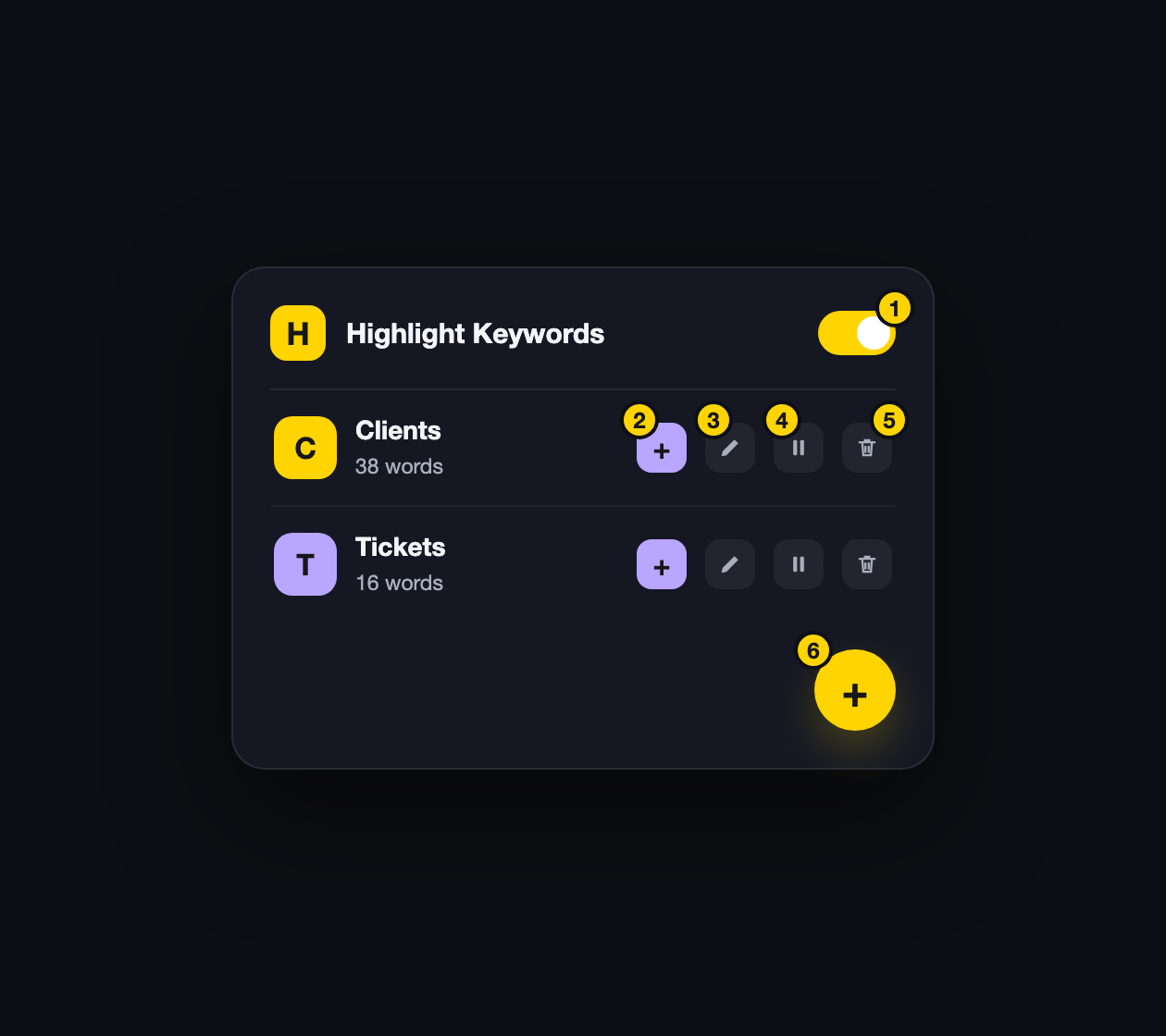
Click the H icon, then the round plus button in the corner. Give the list a name like "Team names" and press Create. Now add a few words: click the small purple plus on the list row, type a name, press Enter. Open any page that contains those words and they will be marked.
The number next to the list name is the word count. The pencil opens the full editor, the pause button turns just that list off, and the trash deletes it (it asks first).
Paste a whole list
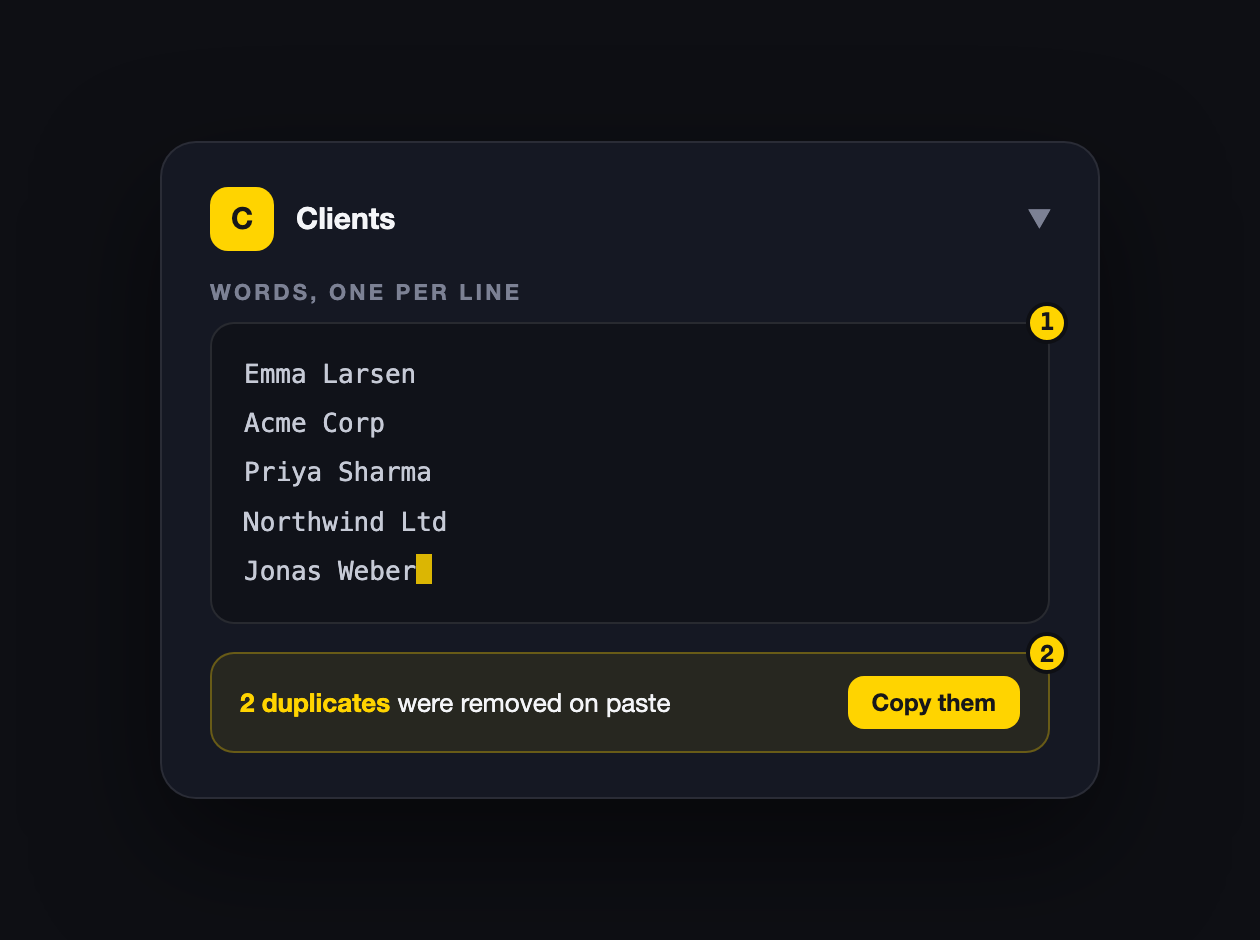
If you keep a roster somewhere else, do not type it in. Open Settings from the popup menu, expand your list, and paste everything into the words box, one name per line. Duplicates are removed on paste, and a small window shows exactly which ones were dropped, with a button to copy them.
Colors and looks
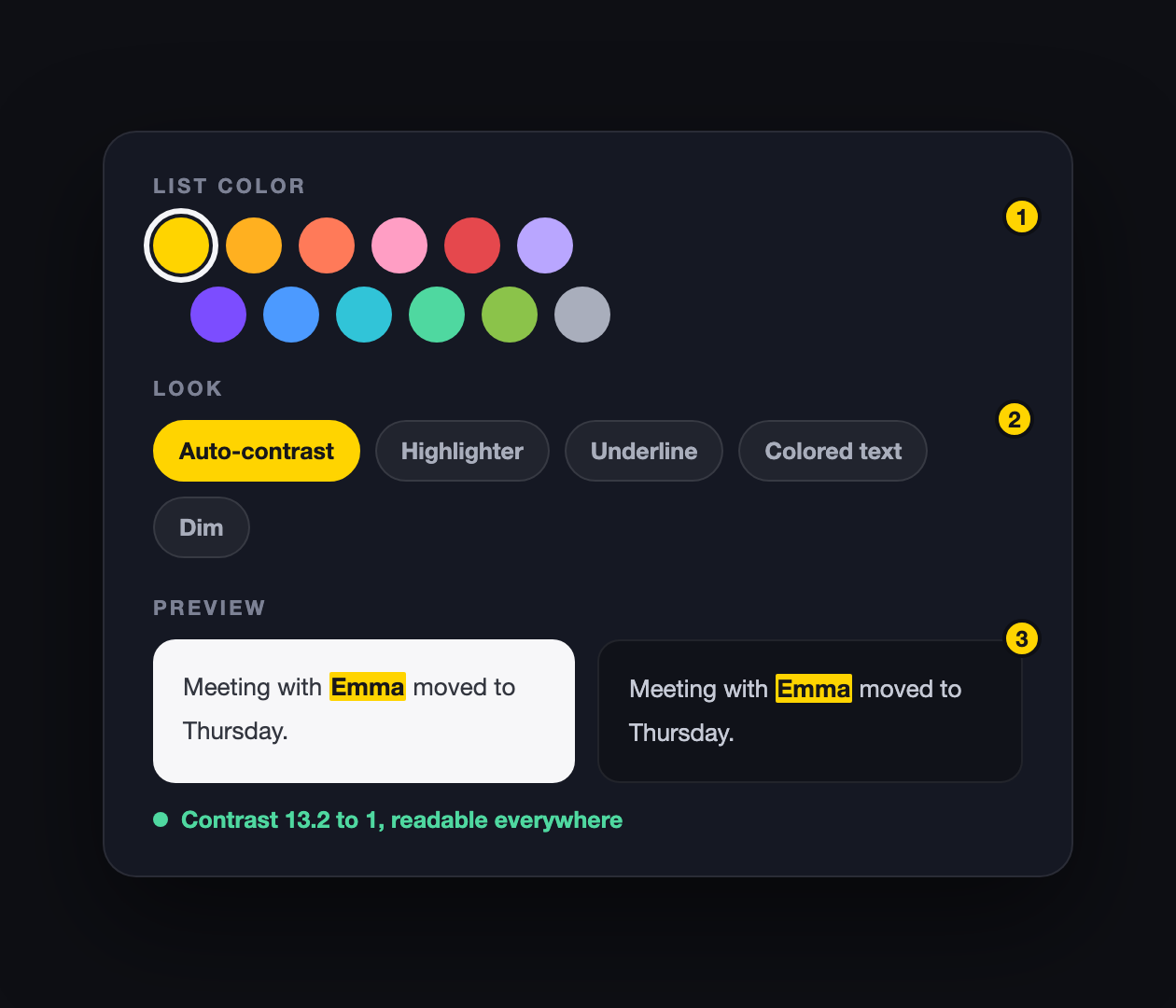
Each list has one color and one look. Pick the color from the honeycomb palette (click the colored dot on the list). Then pick a look:
- Auto-contrast: a solid fill that picks black or white text by itself. This is the default because it stays readable on any site, dark or light.
- Highlighter: a see-through tint, like a real marker pen.
- Underline: a colored line under the word, nothing else changes.
- Colored text: the word itself changes color.
- Dim: fades the word instead of drawing the eye to it, for terms you want to spot but not emphasize.
The preview shows your choice on a light and a dark page at the same time, with a contrast score, so you never have to guess.
Click to copy
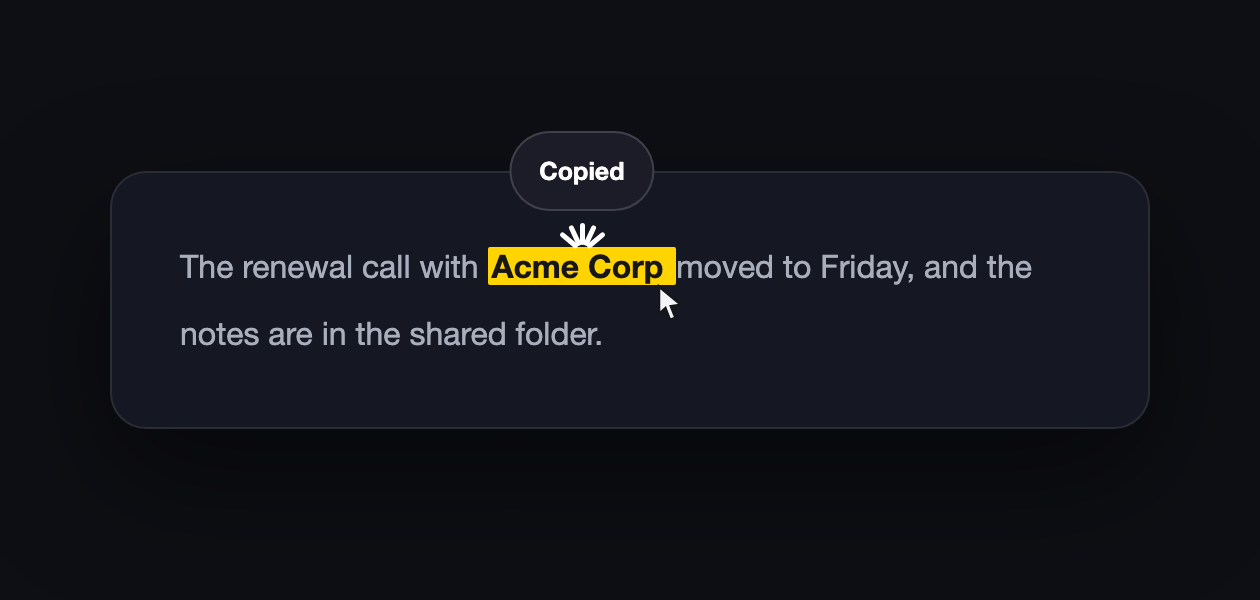
Clicking a highlighted word copies it. A small spark at your cursor confirms it worked. If the highlighted word is inside a link, a normal click follows the link like always; hold Cmd (Mac) or Ctrl (Windows) while clicking to copy it instead.
You can change what a click does per list, under "More options": copy, run a web search, open a URL with the word filled in (use %s), or nothing.
Hover notes
Give a list a note, for example "night shift, reply within 10 minutes", and that note appears when you hover any highlighted word from that list.
Jump between matches
Press Alt+Shift+N to jump to the next highlight on the page, and Alt+Shift+P for the previous one. The match scrolls into view and flashes. Press Alt+Shift+H to turn highlighting on and off everywhere at once. You can change all of these keys at chrome://extensions/shortcuts.
Counts, markers, and alerts
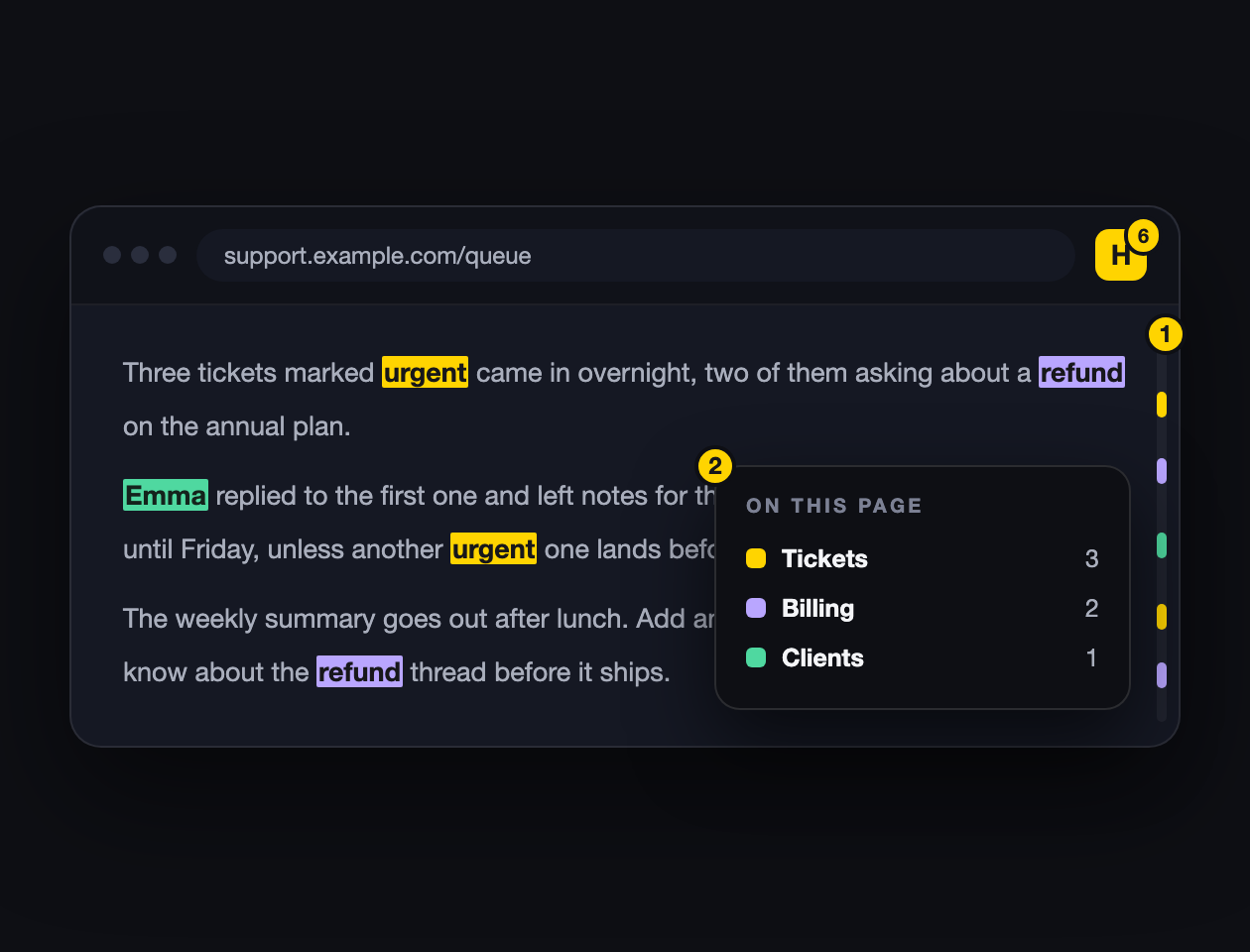
The toolbar icon shows how many matches the current page has. Colored ticks along the right edge of the page mark where they are; click one to jump. "Show on page" in the popup, or Alt+Shift+O, opens a small panel listing every list with matches. Click a row to walk through them one by one.
Any list can also send a desktop notification the moment it first matches a page. Turn it on in the list editor: "Send a desktop notification when this list matches a page". Handy for names in a support queue or a word you are waiting to appear. Alerts are part of Pro, and Settings, Behavior has a switch to play a soft sound with them.
Site rules
Three ways to control where highlighting runs, in Settings under Sites:
- Disable here: turn it off on sites where you do not want it.
- Only here: flip it around, highlight on listed sites and nowhere else.
- Zone: limit highlighting to one part of a page with a CSS selector, like main.
Patterns accept *, so *.slack.com covers every workspace. There is also a faster route: the popup has an "Enable on this site" checkbox for whatever site you are on right now.
Templates
When you create a list from the popup you can pick ready-made ones instead of starting empty: Office (departments, job titles, meeting terms), School (subjects, exam terms), Personal (family, groceries, travel). Pick a few, add them all at once, then edit them like any other list.
List icons
Click a list's color dot and pick an icon under the palette: person, team, briefcase, bell, flag, and about two dozen more. The icon replaces the letter on the list's avatar so you can tell lists apart at a glance.
Regex, fuzzy, and per-word colors
The regex builder writes patterns for you. Choose "words starting with", "any number", "email addresses" and so on, watch it run on sample text, then add it to the list with one click.
Fuzzy matching (Pro) forgives one typo per word: a letter can be wrong, missing, doubled, or two letters swapped. So "Highlaght", "Highlihgt", and "Highlght" all still find "Highlight". It applies to words of five letters or more; shorter words like "Emma" or "two" always match exactly, because with so few letters one typo would match far too much. For short names, add the spellings you care about as separate words.
Per-word colors let one word stand out inside its list: under "More options", add the word and pick its color. The text flips black or white on its own so it stays readable.
Sync (Pro)
With Pro, your lists follow you to other computers where you are signed into the same Chrome profile. Turn it on in Settings under Sync and backup. Two honest limits: Chrome gives extensions a small sync quota, so very large lists may not fully mirror, and phones are out because Chrome on phones does not run extensions at all.
Backups and export
The extension makes a backup by itself before anything risky, including version updates. You can also press "Back up now" any time, restore any backup with one click, and export everything as a JSON file to move it to another machine or just to feel safe. Import accepts that same file.
Share one list
Any single list can travel on its own, without your other lists or settings. Expand the list in Settings and you get two buttons. "Export list" saves just that list as a small file; anyone can add it through Import, and it lands next to their existing lists instead of replacing anything. "Share link" copies a link that opens a page showing the list, with an "Add to my extension" button.
The words are encoded in the link itself, nothing is uploaded. Whoever has the link can read the list, so treat the link like the words in it.
Insights (Pro)
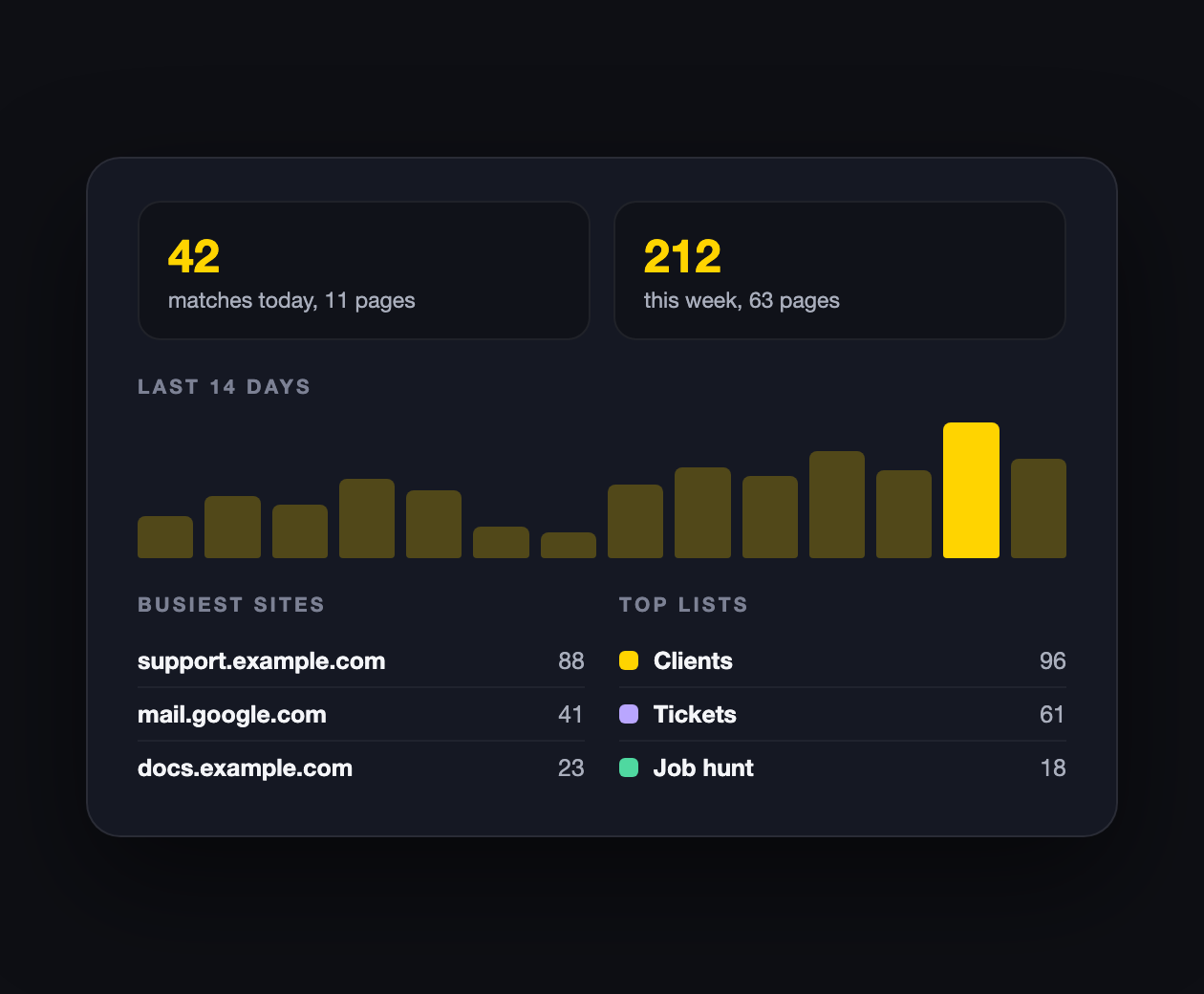
The Insights page in Settings shows what your lists have been doing: matches and pages today and this week, a 14-day trend, your busiest sites, and which lists fire the most. Counting happens on your device from hostnames only, never words or full addresses, history trims itself after 90 days, and Behavior has a switch to turn counting off plus a button to erase it all.
PDFs (Pro)
Chrome's built-in PDF viewer is sealed off from every extension, so the extension ships its own. Open a PDF tab, click the extension icon, and choose "Open it there"; or right-click any PDF link and pick "Open PDF in Highlight Keywords". Your lists, colors, counts, and click-to-copy work on the document exactly like on a webpage. The first time on a new site it asks permission to read the file, and PDFs from your own computer need the "Allow access to file URLs" switch on the extension's page in chrome://extensions.
Remote lists (Pro)
A list can pull its words from a URL on a schedule: a published Google Sheet, a Pastebin raw link, any plain text file with one word per line, a Notion database, or an Airtable table (the last two need an API token). Useful when a team shares one master list. Set it under "More options" on the list, choose how often to refresh, and press "Fetch now" for the first load. The extension will ask permission for that one site.
Troubleshooting
- Updated the extension and highlighting stopped? Refresh the tab too. Chrome only injects extensions into a page when the page loads, so old tabs keep running the old version.
- Some words not highlighting? Check the free limits: 2 lists, and the first 200 words per list. Also check the list is not paused, and that the site is not disabled in your site rules.
- Want matches inside longer words? Lists match whole words by default, so "Mark" does not light up inside "marketing". If you do want that, untick "Whole word only" on the list.
- Nothing highlights in a text box you are typing in? That is on purpose. Changing text inside an input can corrupt what you are writing, so editable fields are skipped.
- Page feels slow? Try turning off "Highlight inside Shadow DOM" in Settings under Behavior, and raise the re-highlight delay a little.
- Something else? Use "Report a bug" inside the extension: open Settings, then Feedback. It attaches your version info, which makes fixes faster. Or email me directly with the page and the word that misbehaves. Real examples get fixed fastest.